Continuous Delivery Pipelines with Spinnaker and Kubernetes Engine
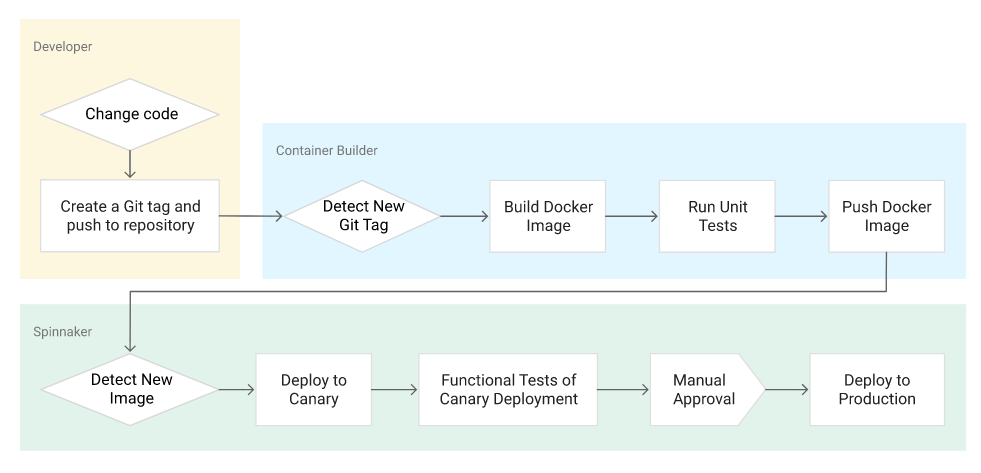
After you create a sample application, you configure these services to automatically build, test, and deploy it. When you modify the application code, the changes trigger the continuous delivery pipeline to automatically rebuild, retest, and redeploy the new version.
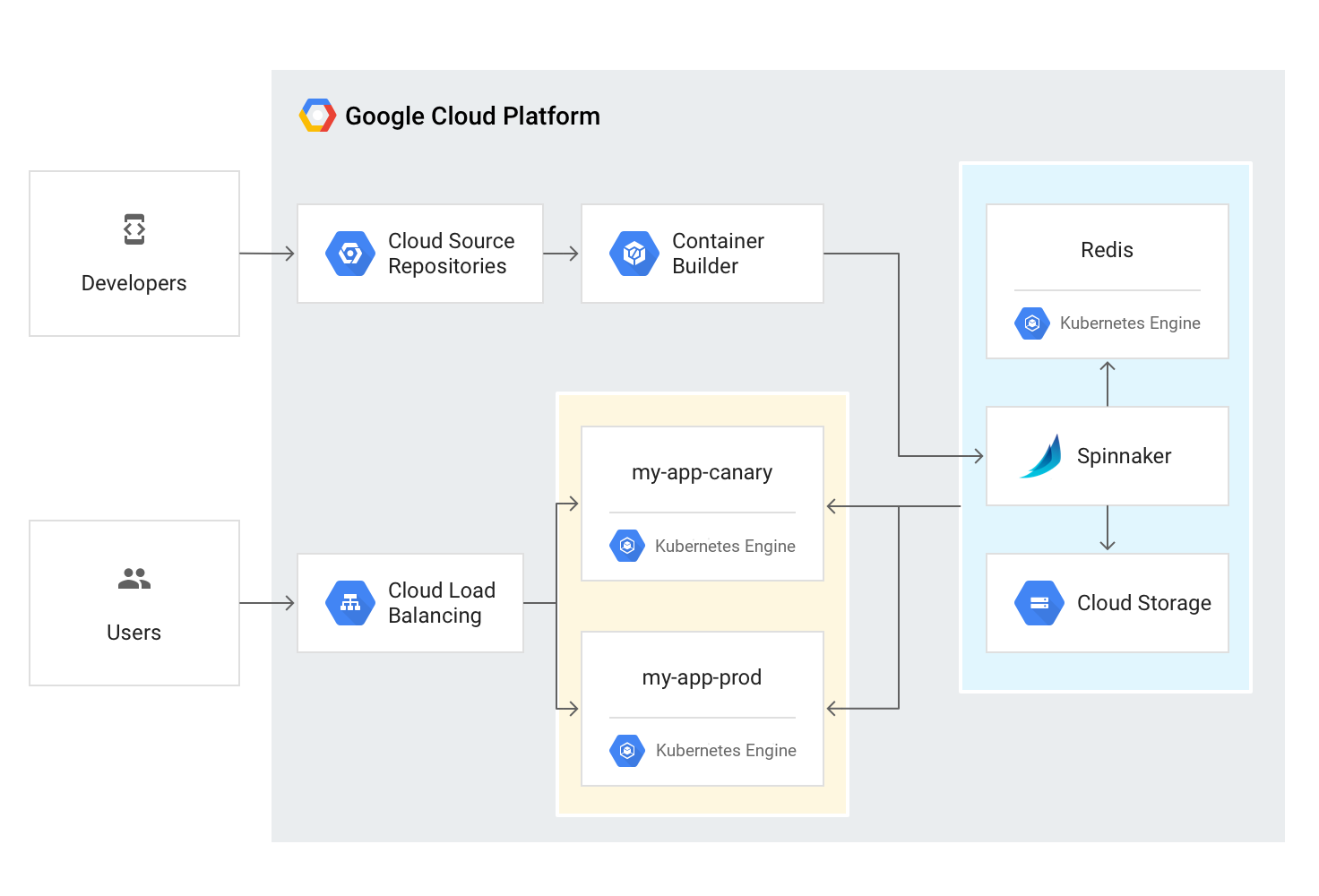
With Kubernetes Engine and Spinnaker you can create a robust continuous delivery flow that helps to ensure your software is shipped as quickly as it is developed and validated. When a given change has been vetted through automation, you can also validate the application manually and conduct further pre-release testing.
1.Create a Kubernetes Engine using the Spinnaker tutorial sample application:
gcloud container clusters create spinnaker-tutorial \
    --machine-type=n1-standard-2
2.Set up Cloud Pub/Sub to trigger Spinnaker pipelines:
- Create the Cloud Pub/Sub topic for notifications from Container Registry.
gcloud pubsub topics create projects/$PROJECT/topics/gcr
- Create a subscription that Spinnaker can read from to receive notifications of images being pushed.
gcloud pubsub subscriptions create gcr-triggers \
    --topic projects/${PROJECT}/topics/gcr
- Give Spinnaker’s service account permissions to read from the gcr-triggers subscription.
export SA_EMAIL=$(gcloud iam service-accounts list \
    --filter="displayName:spinnaker-account" \
    --format='value(email)')
gcloud beta pubsub subscriptions add-iam-policy-binding gcr-triggers \
    --role roles/pubsub.subscriber --member serviceAccount:$SA_EMAIL
Deploying Spinnaker using Helm
Helm is a package manager you can use to configure and deploy Kubernetes applications.
Install Helm
- Download and install the
helmbinary:
wget https://get.helm.sh/helm-v3.1.0-linux-amd64.tar.gz
- Unzip the file to your local system:
tar zxfv helm-v3.1.0-linux-amd64.tar.gz

cp linux-amd64/helm .
- Grant Helm the cluster-admin role in your cluster:
kubectl create clusterrolebinding user-admin-binding \
    --clusterrole=cluster-admin --user=$(gcloud config get-value account)
- Grant Spinnaker the
cluster-adminrole so it can deploy resources across all namespaces:
kubectl create clusterrolebinding --clusterrole=cluster-admin \
    --serviceaccount=default:default spinnaker-admin
- Add the stable charts deployments to Helm’s usable repositories (includes Spinnaker):
./helm repo add stable https://kubernetes-charts.storage.googleapis.com
./helm repo update
Configure Spinnaker
- Still in Cloud Shell, create a bucket for Spinnaker to store its pipeline configuration:
export PROJECT=$(gcloud info \
    --format='value(config.project)')

export BUCKET=$PROJECT-spinnaker-config

gsutil mb -c regional -l us-central1 gs://$BUCKET
- Run the following command to create a
spinnaker-config.yamlfile, which describes how Helm should install Spinnaker:
export SA_JSON=$(cat spinnaker-sa.json)
export PROJECT=$(gcloud info --format='value(config.project)')
export BUCKET=$PROJECT-spinnaker-config
cat > spinnaker-config.yaml <<EOF
gcs:
  enabled: true
  bucket: $BUCKET
  project: $PROJECT
  jsonKey: '$SA_JSON'

dockerRegistries:
- name: gcr
  address: https://gcr.io
  username: _json_key
  password: '$SA_JSON'
  email: 1234@5678.com

# Disable minio as the default storage backend
minio:
  enabled: false

# Configure Spinnaker to enable GCP services
halyard:
  additionalScripts:
    create: true
    data:
      enable_gcs_artifacts.sh: |-
        \$HAL_COMMAND config artifact gcs account add gcs-$PROJECT --json-path /opt/gcs/key.json
        \$HAL_COMMAND config artifact gcs enable
      enable_pubsub_triggers.sh: |-
        \$HAL_COMMAND config pubsub google enable
        \$HAL_COMMAND config pubsub google subscription add gcr-triggers \
          --subscription-name gcr-triggers \
          --json-path /opt/gcs/key.json \
          --project $PROJECT \
          --message-format GCR
EOF
Deploy the Spinnaker chart
- Use the Helm command-line interface to deploy the chart with your configuration set:
./helm install -n default cd stable/spinnaker -f spinnaker-config.yaml \
           --version 2.0.0-rc9 --timeout 10m0s --wait
- After the command completes, run the following command to set up port forwarding to Spinnaker from Cloud Shell:
export DECK_POD=$(kubectl get pods --namespace default -l "cluster=spin-deck" \
    -o jsonpath="{.items[0].metadata.name}")
kubectl port-forward --namespace default $DECK_POD 8080:9000 >> /dev/null &
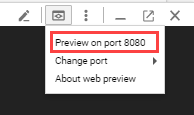
- To open the Spinnaker user interface, click the Web Preview icon at the top of the Cloud Shell window and select Preview on port 8080.
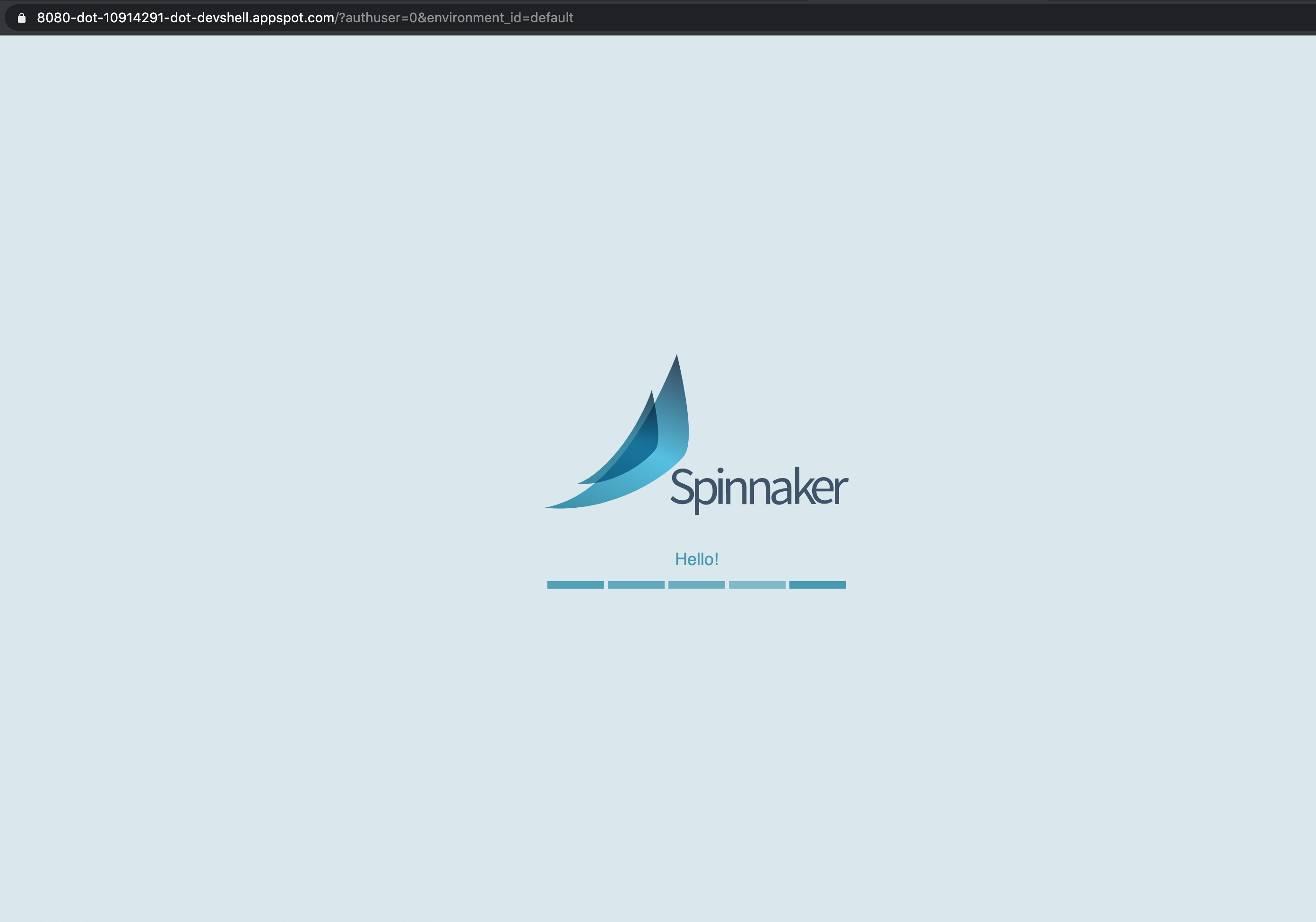
The welcome screen opens, followed by the Spinnaker user interface:
Building the Docker image
Cloud Build to detect changes to your app source code, build a Docker image, and then push it to Container Registry.
Create your source code repository
- In Cloud Shell tab and download the sample application source code:
gsutil -m cp -r gs://spls/gsp114/sample-app.tar .
- Unpack the source code and Change directories
3.Set the username and email address for your Git commits in this repository. Replace [USERNAME] with a username you create:
git config --global user.email "$(gcloud config get-value core/account)"

git config --global user.name "[USERNAME]"
4.Make the initial commit to your source code repository:
git init

git add .

git commit -m "Initial commit"
5.Create a repository to host your code:
gcloud source repos create sample-app
6.Add your newly created repository as remote:
export PROJECT=$(gcloud info --format='value(config.project)')

git remote add origin https://source.developers.google.com/p/$PROJECT/r/sample-app
7.Push your code to the new repository’s master branch:
git push origin master
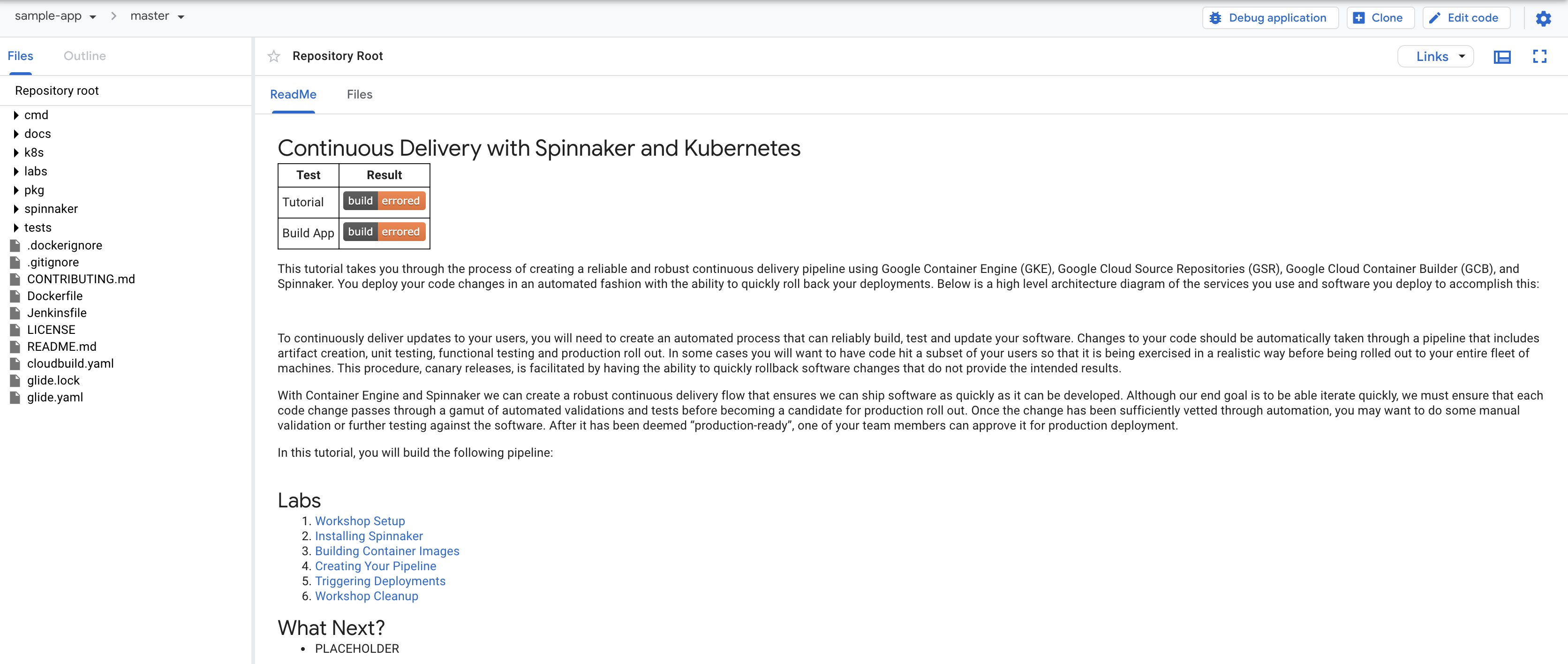
8.Check that you can see your source code in the Console by clicking Navigation Menu > Source Repositories.
9.Click View All Repositories and select sample-app.
Configure your build triggers
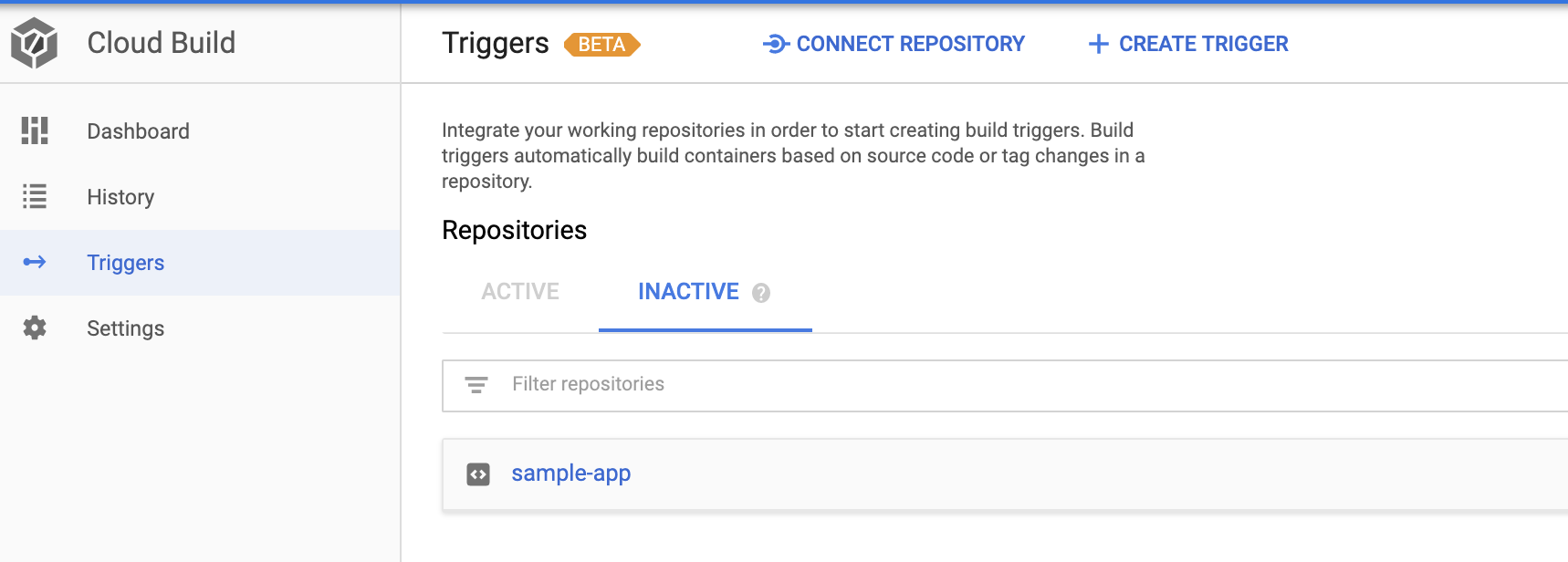
Configure Container Builder to build and push your Docker images every time you push Git tags to your source repository.

- In the Cloud Platform Console, click Navigation menu > Cloud Build > Triggers.
- Click Create trigger.
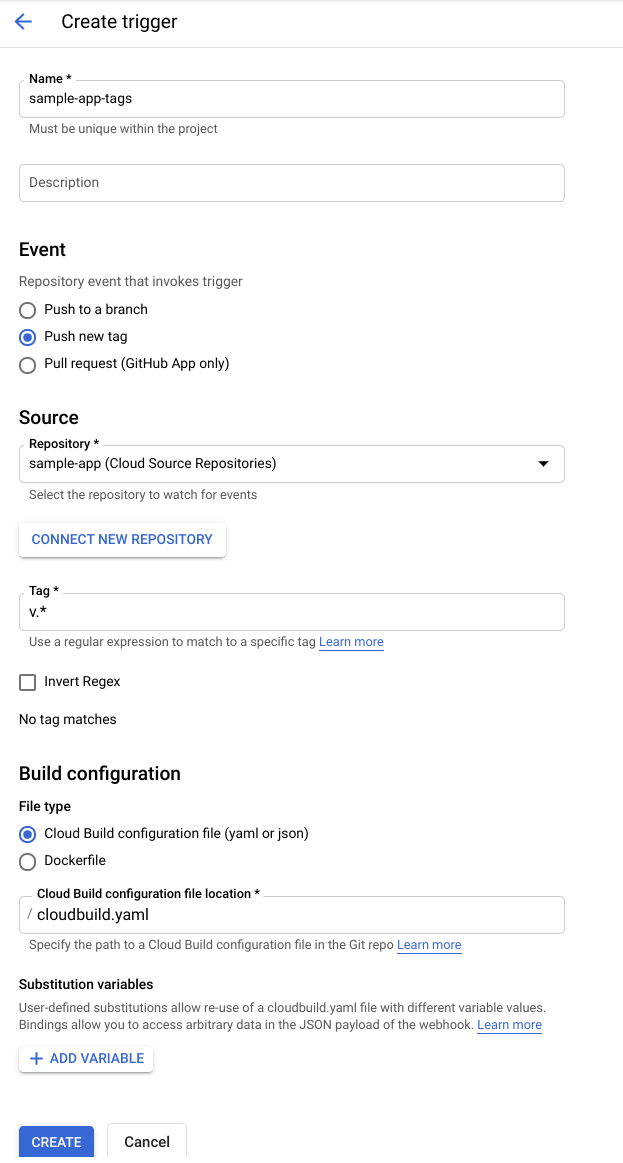
- Set the trigger settings
- Click CREATE.
Prepare your Kubernetes Manifests for use in Spinnaker
Spinnaker needs access to your Kubernetes manifests in order to deploy them to your clusters. After your manifests are in Cloud Storage, Spinnaker can download and apply them during your pipeline’s execution.
- Create the bucket:
export PROJECT=$(gcloud info --format='value(config.project)')

gsutil mb -l us-central1 gs://$PROJECT-kubernetes-manifests
- Enable versioning on the bucket so that you have a history of your manifests:
gsutil versioning set on gs://$PROJECT-kubernetes-manifests
- Set the correct project ID in your kubernetes deployment manifests:
sed -i s/PROJECT/$PROJECT/g k8s/deployments/*
- Commit the changes to the repository:
git commit -a -m "Set project ID"
Build your image
Push your first image using the following steps:
- In Cloud Shell, still in the
sample-appdirectory, create a Git tag:
git tag v1.0.0
- Push the tag:
git push --tags
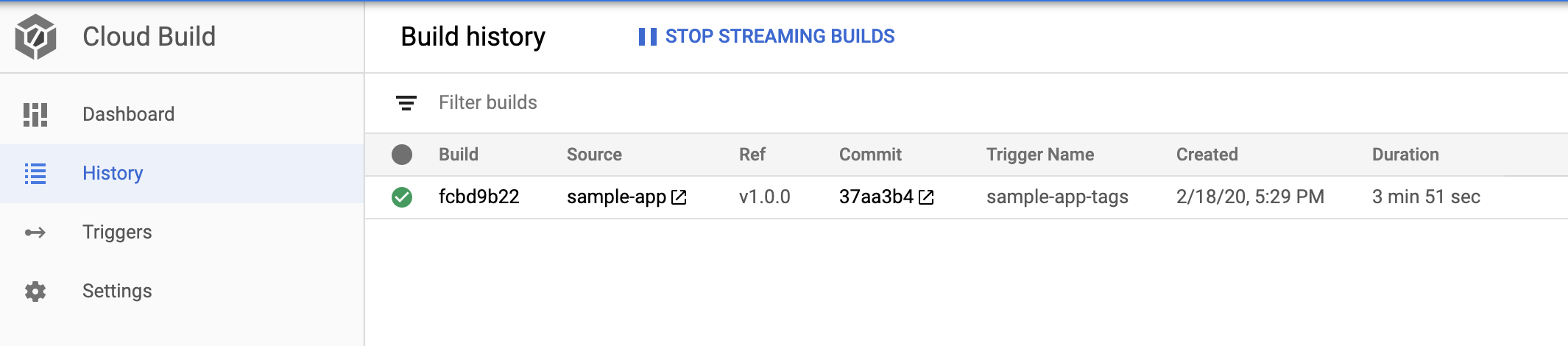
- Go to the Cloud Console. Still in Cloud Build, click History in the left pane to check that the build has been triggered. If not, verify that the trigger was configured properly in the previous section.
Configuring your deployment pipelines
Now that your images are building automatically, you need to deploy them to the Kubernetes cluster.
Install the spin CLI for managing Spinnaker
spin is a command-line utility for managing Spinnaker’s applications and pipelines.
- Download the 1.14.0 version of
spin:
curl -LO https://storage.googleapis.com/spinnaker-artifacts/spin/1.14.0/linux/amd64/spin
- Make
spinexecutable:
chmod +x spin
Create the deployment pipeline
- Use spin to create an app called sample in Spinnaker. Set the owner email address for the app in Spinnaker:
./spin application save --application-name sample \
                        --owner-email "$(gcloud config get-value core/account)" \
                        --cloud-providers kubernetes \
                        --gate-endpoint http://localhost:8080/gate
- From your
sample-appsource code directory, run the following command to upload an example pipeline to your Spinnaker instance:
export PROJECT=$(gcloud info --format='value(config.project)')
sed s/PROJECT/$PROJECT/g spinnaker/pipeline-deploy.json > pipeline.json
./spin pipeline save --gate-endpoint http://localhost:8080/gate -f pipeline.json
Manually Trigger and View your pipeline execution
The configuration you just created uses notifications of newly tagged images being pushed to trigger a Spinnaker pipeline. To verify the pipeline, manually trigger it.
- In the Spinnaker UI and click Applications at the top of the screen to see your list of managed applications. sample is your application. If you don’t see sample, try refreshing the Spinnaker Applications tab.
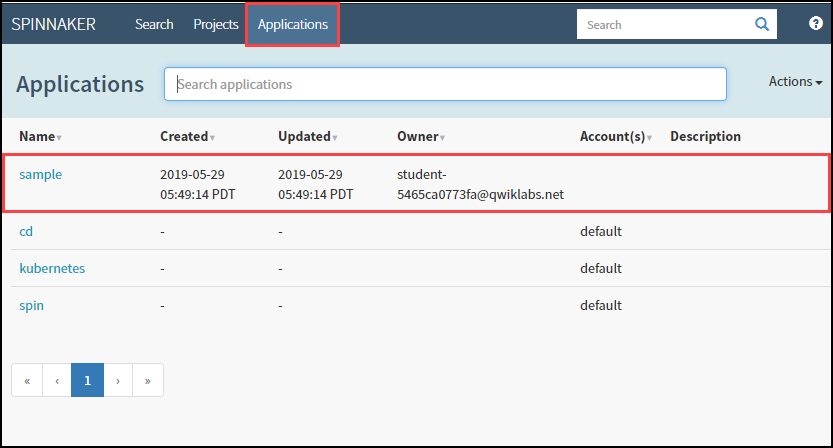
- Click sample to view your application deployment.
- Click Pipelines at the top to view your applications pipeline status.
- Click Start Manual Execution to trigger the pipeline this first time.
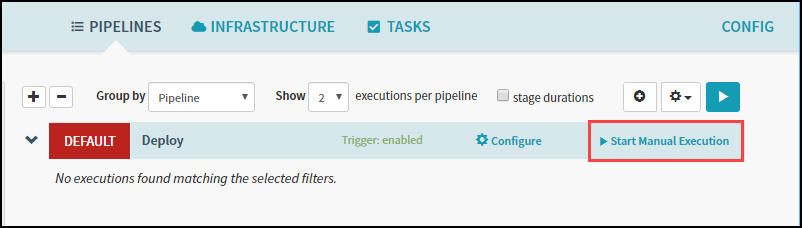
- Click Run.
- Click Execution Details to see more information about the pipeline’s progress.
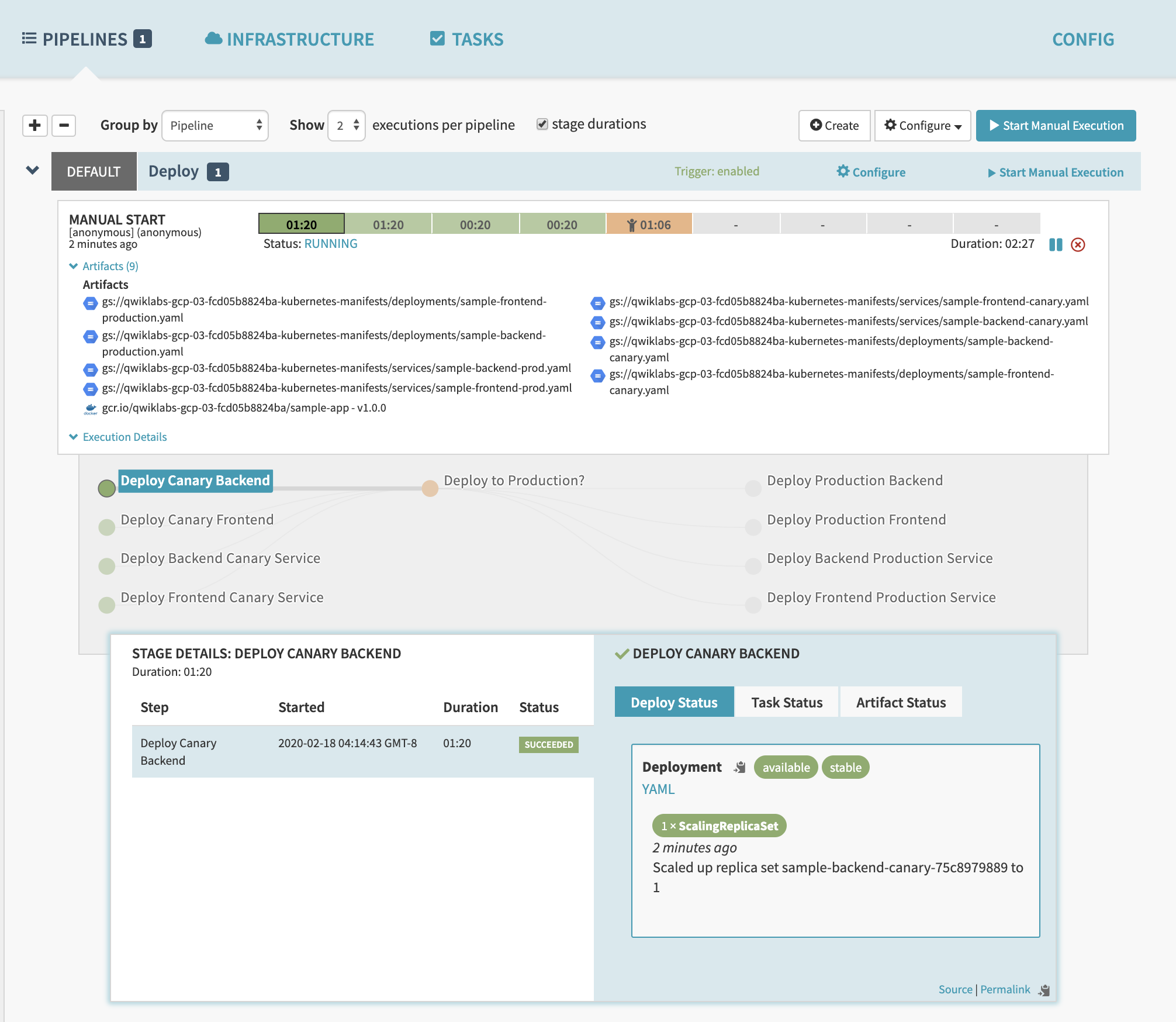
The progress bar shows the status of the deployment pipeline and its steps.

Steps in blue are currently running, green ones have completed successfully, and red ones have failed.
- Click a stage to see details about it.
- Hover over the yellow “person” icon and click Continue.
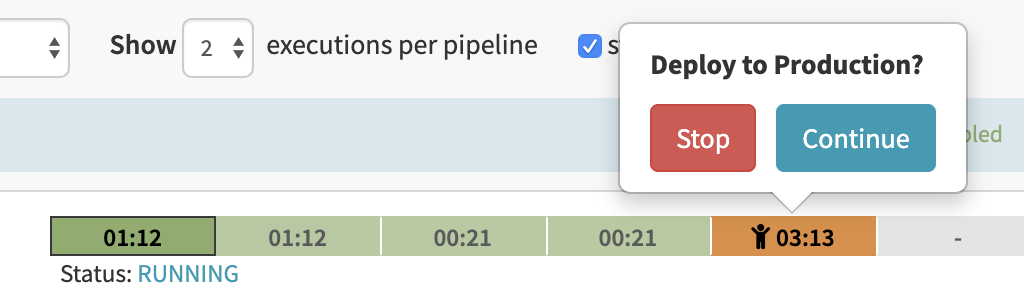
- To view the app, select Infrastructure > Load Balancers in the top of the Spinnaker UI.
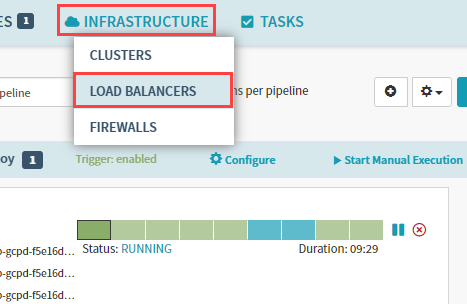
- Scroll down the list of load balancers and click Default, under
service sample-frontend-production. - Scroll down the details pane on the right and copy your app’s IP address by clicking the clipboard button on the Ingress IP. The ingress IP link from the Spinnaker UI may use HTTPS by default, while the application is configured to use HTTP.
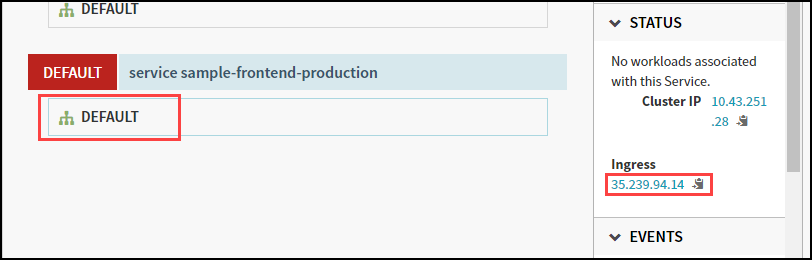
- Paste the address into a new browser tab to view the application. You might see the canary version displayed, but if you refresh you will also see the production version.
You have now manually triggered the pipeline to build, test, and deploy your application.
Triggering your pipeline from code changes
By pushing a Git tag that starts with “v”, you trigger Container Builder to build a new Docker image and push it to Container Registry. Spinnaker detects that the new image tag begins with “v” and triggers a pipeline to deploy the image to canaries, run tests, and roll out the same image to all pods in the deployment.
- From your sample-app directory, change the color of the app from orange to blue:
sed -i 's/orange/blue/g' cmd/gke-info/common-service.go
- Tag your change and push it to the source code repository:
git commit -a -m "Change color to blue"

git tag v1.0.1

git push --tags
- In the Console, in Cloud Build > History, wait a couple of minutes for the new build to appear. You may need to refresh your page. Wait for the new build to complete, before going to the next step.
- Return to the Spinnaker UI and click Pipelines to watch the pipeline start to deploy the image. The automatically triggered pipeline will take a few minutes to appear. You may need to refresh your page.
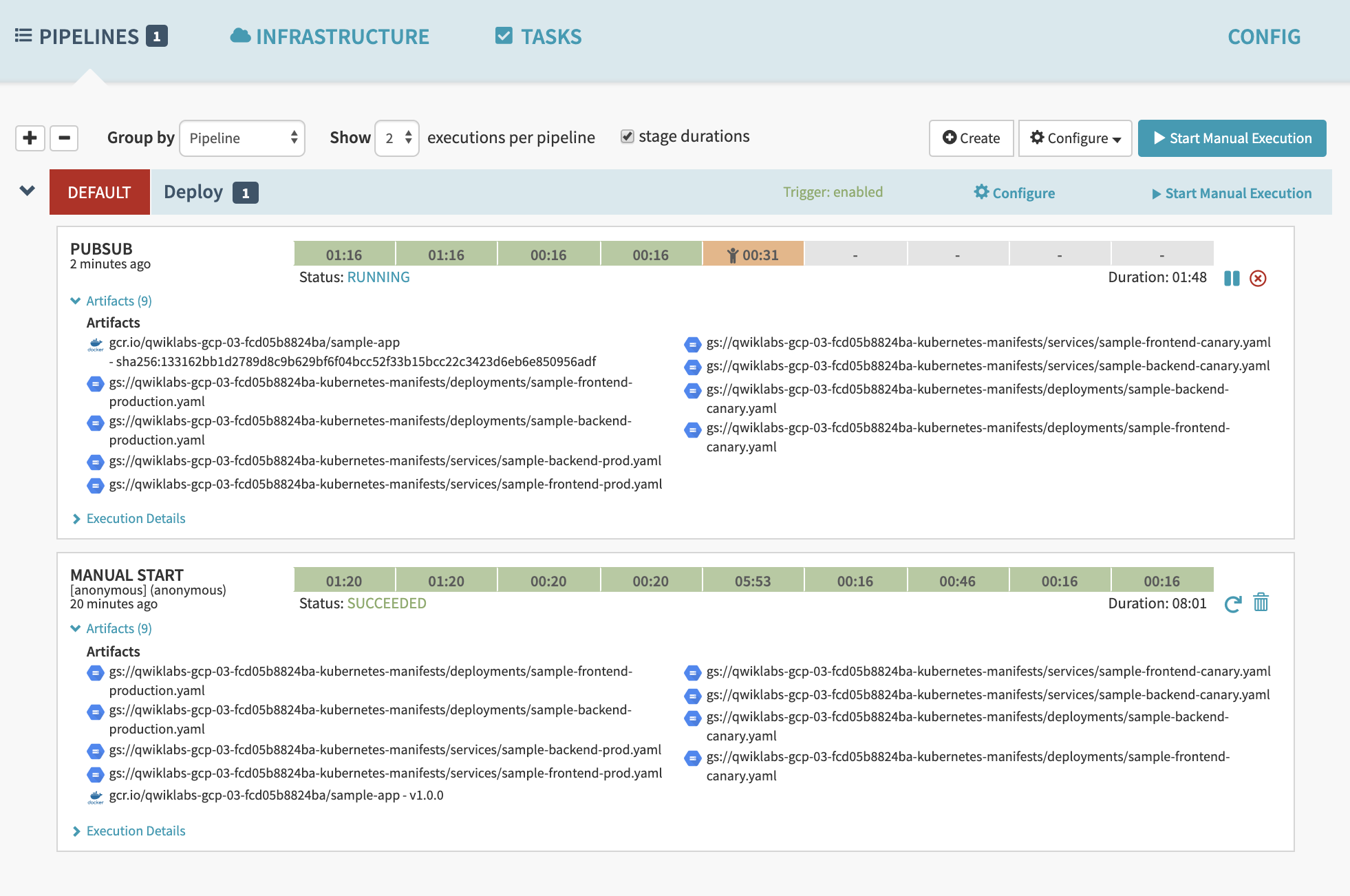
Observe the canary deployments
- When the deployment is paused, waiting to roll out to production, return to the web page displaying your running application and start refreshing the tab that contains your app. Four of your backends are running the previous version of your app, while only one backend is running the canary. You should see the new, blue version of your app appear about every fifth time you refresh.
- When the pipeline completes, your app looks like the following screenshot. Note that the color has changed to blue because of your code change, and that the Version field now reads
canary.
- Optionally, you can roll back this change by reverting your previous commit. Rolling back adds a new tag (v1.0.2), and pushes the tag back through the same pipeline you used to deploy v1.0.1:
git revert v1.0.1

git tag v1.0.2

git push --tags
- When the build and then the pipeline completes, verify the roll back by clicking Infrastructure > Load Balancers, then click the service sample-frontend-production Default and copy the Ingress IP address into a new tab.
For more information,
- https://spinnaker.io/reference/providers/kubernetes/
- https://spinnaker.io/concepts/
- https://cloud.google.com/solutions/continuous-delivery-toolchain-spinnaker-cloud
For basics of Google cloud services covered in in the Cloud Engineering Track:
https://programmerprodigy.code.blog/2020/11/10/google-cloud-services-basics/
I have mostly picked up information from Google documentation, and pictures i have used to explain concepts are not by me, I just found them online.


 Programmer Prodigy
One thought on “Google Kubernetes Engine basics”