Networking on AWS :
1. Amazon virtual private cloud(VPC) :
To understand VPC, we need to accept the fact that the point of VPC is to provide a frame, to provide a box that all of your application lives inside, and the idea is nothing comes in the box, nothing gets out of the box, without your specific permission, and whether you’re filtering by network protocol, or port, or IP address, or by user or other information, you maintain complete control of all the assets inside your VPC.
When you create a VPC, you also then divide the space inside the VPC into subnets,
In a traditional way , subnets might be used to gather up servers or instances that need to talk quickly to each other.
In the case of AWS, subnets are primarily used to determine access to gateways, as well as to isolate specific traffic that you don’t want to talk to each other or do want to talk to each other.
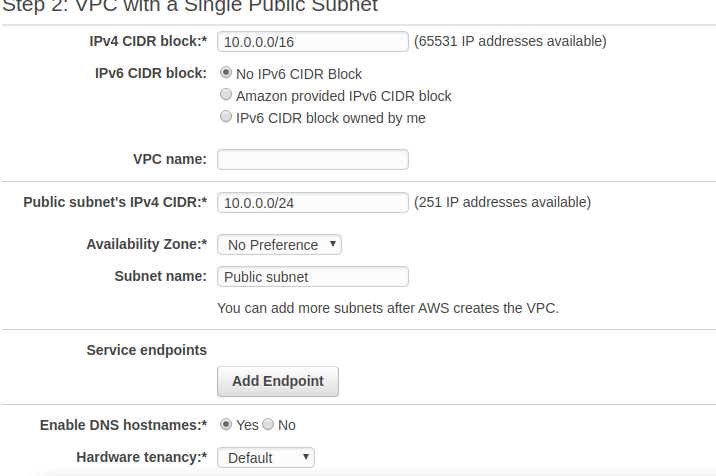
To build the VPC, you only have to declare two specific things :
- what Region you’re selecting, and remember we’ve already talked about the reasons why you might choose one Region over another.
- the IP range for the private IPs of everything that’s going to run inside this VPC.
The subnet is a subset of the IP ranges for the VPC itself, and we’re going to want more than just one subnet,
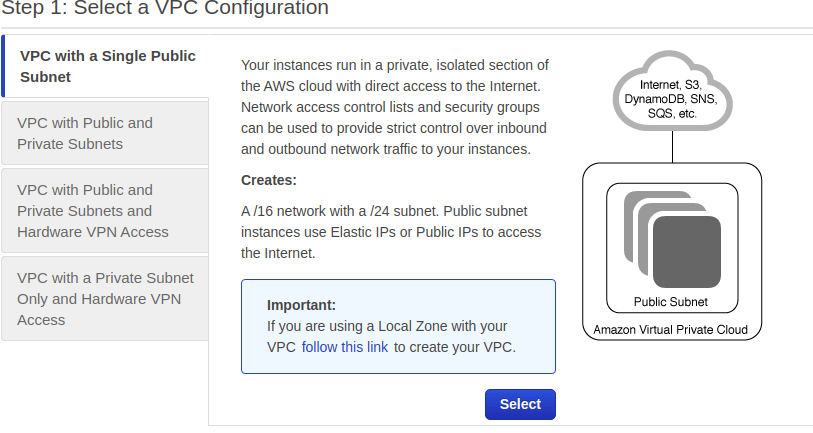
1.select a VPC configuration
2.decide the two above specified conditions
CIDR Notation ?
An important concept that’s used in networking on AWS is CIDR, or Classless Inter-Domain Routing. CIDR network addresses are allocated in a virtual private cloud (VPC) and in a subnet by using CIDR notation. A /16 block provides 65,536 IPv4 addresses. A /24 block provides 256 addresses. See this article for more information about CID
Default VPC ?
In each Region, AWS will provision a default VPC. This VPC has a /16 IPv4 CIDR address block of 172.31.0.0/16. This provides 65,536 private IPv4 addresses. In addition, there will be a /20 subnet that is created for each Availability Zone in the Region, which provides 4,096 addresses per subnet, with a few addresses reserved for AWS usage. The route table that is associated with the default VPC will have a public route, which in turn is associated with a provisioned internet gateway.
VPC stops all traffic in and all traffic out, and if we’re going to put a web server in there, well, that means nobody can talk to it. So, we have to add a gateway, and the gateway is called the internet gateway, or the IGW, the internet gateway. To solve this, we create the internet gateway, and attach it to the VPC and then we’ll create a route table and associate that with the subnet, so that any communication that wants to talk to assets in this subnet, can come in and out of that IGW. Then we create an EC2 instance in the subnet.
But a database does not go, shouldn’t go, in the same public access subnet where web servers are, because I never want anyone from the outside to access a database directly. So, we’re going to make another subnet inside my VPC. But this subnet will not have access to the IGW. So this subnet is what we call a private subnet. You create a subnet, but you don’t assign IGW access to it .

Our application will be able to connect to the database because they live inside the same VPC. But nobody from the outside will be able to connect directly to that database.
Optimal solution :
I want to talk about high availability. So for that we want to move beyond just one Availability Zone, into a Multi-AZ strategy. So what we’re going to do, is we’re going to create two new subnets, one public and one private, in a separate Availability Zone. This is going to give us that high availability that we need.
We need to associate our route table that allows us to route internet traffic to our public subnet that we just created in our second Availability Zone. So to do that I’m going to select Route Tables. I’m going to find our public route table here and then I’m going to select Subnet Associations. At this point, we need to edit this and associate the new public subnet. So I will select Edit, find public subnet number two, click Save, and that’s it.
You doesn’t have to change the VPC because the VPC, by definition, already is a multi-Availability Zone structure. All you had to do was add in a new public subnet, which is going to be associated with the same IGW, and created a new private subnet all in the other Availability Zone. And this one like my other private subnet, does not have IGW access. Now, the last thing is to launch a new EC2 instance in this private subnet, and then change my RDS to a Multi-AZ RDS. That’s going to have a standby, running in my other Availability Zone.
But do you really want your customers to have to choose which EC2 instance they log into? Of course not. That’s what load balancers are for. So one more piece to put in here as part of AWS networking is an elastic load balancer, or an ELB.
To launch an ELB and associate that ELB with both of the EC2 instances, so that it doesn’t matter which one gets the traffic. They’re both going to get an even amount of traffic distributed automatically by the elastic load balancer.
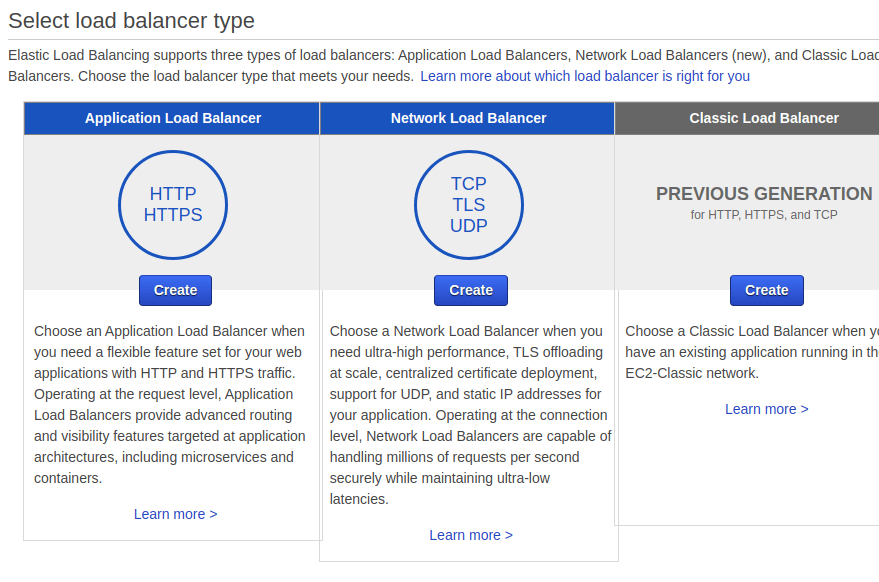
We’ve got all the pieces you need to run a successful web application. You’ve got your VPC, the virtual private cloud. That is going to isolate your traffic from anyone else inside AWS. You’ve got traffic coming in from the public IGW that is going to go through the elastic load balancer and be distributed to either one of the EC2 instances. The instances are going to all talk to the database. The master database has a standby database in the event that something goes wrong. Well, the only thing that we haven’t talked about is what if you want to communicate to your objects, but you don’t want to go to it over the public internet?
There’s one more type of gateway we can add into your VPC and that’s called a virtual private gateway. And a virtual private gateway, or a VGW, can be created and attached, and this can even be associated with your private subnets. So that if you’ve got a DBA, that is connecting over your own on-premises data center.
Details on Amazon VPC can be found here: https://aws.amazon.com/vpc
Storage :
Building and maintaining your own storage repository is complex, expensive, and time-consuming. Like computing, you don’t want to under-provision or over-provision for your storage needs. AWS storage options enable customers to store and access their data over the internet in a durable, reliable, and cost-effective manner. You can consume as much or as little storage capacity, as needed, without having to estimate what your storage needs will be ahead of time.
S3 is what we call object-level storage, whereas RDS runs on block-level storage. Object-level storage works like this.
If you have an image,and you want to update that image, you have to update the entire file. So the whole file’s going to change. For object storage, we use Amazon S3. This provides highly durable and scalable stores for items like images, videos, text files, and more.
In contrast, databases like Amazon RDS run on top of block-level storage.
How this works is if we wanted to change the location for a contact, we could just change the corresponding blocks. We do not need to update the entire data file for every single change. Storage for databases and EC2 instances use block-level storage, like Amazon Elastic Block Storage, or EBS. For file storage and shared file systems, Amazon offer Amazon Elastic File System, or Amazon EFS.
1.Elastic Block Storage (EBS):
When you launch your EC2 instance, you’re going to need some kind of block storage to go with it. And AWS has racks of unused storage that you can provision to sizes as large as you need up to many terabytes in size. When you launch the EC2 instance, the boot volume can attach directly to your EC2 instance, as well as the data volume. These volumes live independent of the EC2 instance themselves. In fact, they may already exist before your EC2 instance launches. When it launches, it simply finds the volume and attaches it the same way you might have an old drive from a laptop. That when you get a brand new laptop, you attach, and you’ve got the same old data.
This EC2 instance, when it connects to the EBS volumes, now has a direct communication to these volumes. Nobody else can talk directly to them. It’s how we maintain secure communications at all times. The EBS volumes have a life-cycle independent of EC2. What does this mean?
Let’s say that this EC2 instance is part of a developer machine that over the weekend, nobody is using because your developers go home over the weekend. So, during those 48 hours, 72 hours, there’s no reason to be paying for EC2 because nobody is using it. All you have to do is simply stop the instance. When you stop EC2, the EBS volumes survive. They just simply are no longer connected to the EC2 instance. Then, Monday morning comes around, your developer starts up an EC2 instance, and a brand new instance is created. It reattaches those same EBS volumes the same way you would simply shut down your laptop over the weekend and start it again on Monday. But over the weekend, you didn’t have to pay for EC2.
I could take your hard drives out of your existing laptop and put it in a stronger laptop, at AWS, you can simply provision a newer, bigger EC2 instance, stop the old EC2 instance, and then just attach the volumes to your brand new EC2. So, now, I’ve got the same boot volume, the same applications, the same data only running newer, bigger, stronger.
Amazon EBS provides a range of options that allow you to optimize storage performance and cost for your workload. These options are divided into two major categories: SSD-backed storage for transactional workloads, such as databases and boot volumes (performance depends primarily on IOPS), and hard disk drive (HDD)-backed storage for throughput-intensive workloads, such as MapReduce and log processing (performance depends primarily on MB/s).
Full details on Amazon EBS are available here: https://aws.amazon.com/ebs
2.Amazon simple storage service (S3) :
Amazon Simple Storage Service, or S3, is a highly scalable and durable object storage solution, for storing and retrieving any amount of data. S3 is a simple and cost-effective way to store and retrieve your data at anytime, from anywhere on the web. S3 is a very popular service that is used for scenarios such as basic object storage like images or text files, storage of backups, application file hosting, media hosting, and many other use cases. It can be used to store virtually any type of document or object at a large scale, as S3 has an unlimited capacity for your storage needs. Your storage needs are going to grow and change over time, and S3 is built for durability and scalability. S3 offers 99.99% availability with 11 nines of durability. They store three copies of your data redundantly across AWS facilities within the Region that you selected. With this level of durability, S3 is often used as a place to comfortably store backups.
To get started with S3, there’s a few key concepts that you need to understand,
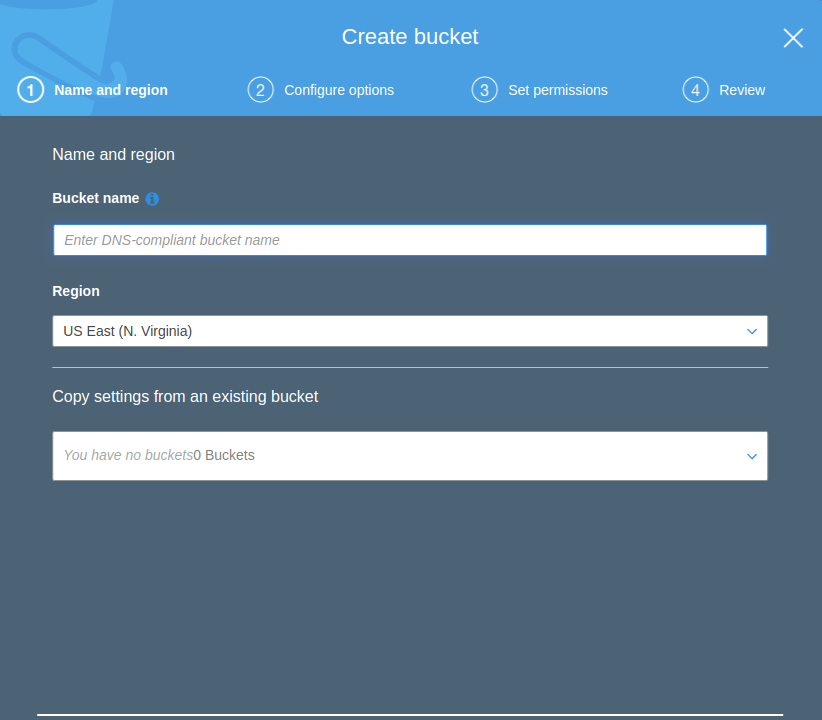
- objects are stored in what we call buckets. Buckets are repositories for objects that live in a specific Region. Even though S3 is specific to one Region, bucket names need to be globally unique across all AWS accounts and must be DNS-compliant. The reason for this is that your objects are accessible over HTTP or HTTPS. So when you create a bucket, Amazon provides you with a URL to that bucket
- once you have your bucket, you can then start to upload objects into that bucket. Those objects are then also accessible over HTTP or HTTPS. Let’s say we have an image. This image is called picture.jpg. Now that we have an object, we can store it in our S3 bucket. Once our object is stored in the bucket, we will get a URL for that object. You’ll notice that the beginning part of the URL is your bucket name, and the end part is going to be your key, or your object name.
- S3 provides secure object storage that you control. By default, when you upload an object into a bucket, it is private. That means if you want to share the URL to the object with another person or application, you need to configure the permissions on that object to allow access. You can control bucket and object access through access control lists, and bucket policies. You can further secure access to S3 by enforcing HTTPS-only connections.
- you can write, read, and delete objects containing information from 1 byte to 5 terabytes of information per object. Though the size of each object uploaded is limited to 5 terabytes, the overall size limit of the bucket is not limited, which allows for uncapped storage growth.
Full details on Amazon S3 can be found here: https://aws.amazon.com/s3.
3.Amazon Elastic File System :
Amazon Elastic File System (Amazon EFS) provides simple, scalable, elastic file storage for use with AWS Cloud services and on-premises resources. It is straightforward to use, and it offers a simple interface that allows you to create and configure file systems quickly and easily.
Amazon EFS is designed to provide massively parallel shared access to thousands of Amazon EC2 instances. This enables your applications to achieve high levels of aggregate throughput and IOPS that scale as a file system grows, with consistent low latencies.
When an Amazon EFS file system is mounted on Amazon EC2 instances, it provides a standard file system interface and file system access semantics, which allows you to seamlessly integrate Amazon EFS with your existing applications and tools. Multiple Amazon EC2 instances can access an Amazon EFS file system at the same time, thus allowing Amazon EFS to provide a common data source for workloads and applications that run on more than one Amazon EC2 instance.
Current details on Amazon EFS can be found at: https://aws.amazon.com/efs/

 Programmer Prodigy
One thought on “AWS Fundamentals: AWS Cloud-Native”